macOS · Windows · Linux — same local database

Every database you touch,
one native desktop app.

DB Desk is a TablePlus-style browser for PostgreSQL, MySQL/MariaDB, ClickHouse, SQLite, MongoDB and Redis/Valkey — fast, keyboard-first, and read-only until you say otherwise. It runs entirely on your machine, and your credentials never leave it.

No account, no sign-in Signed, automatic updates DMG · NSIS installer · deb · rpm · AppImage

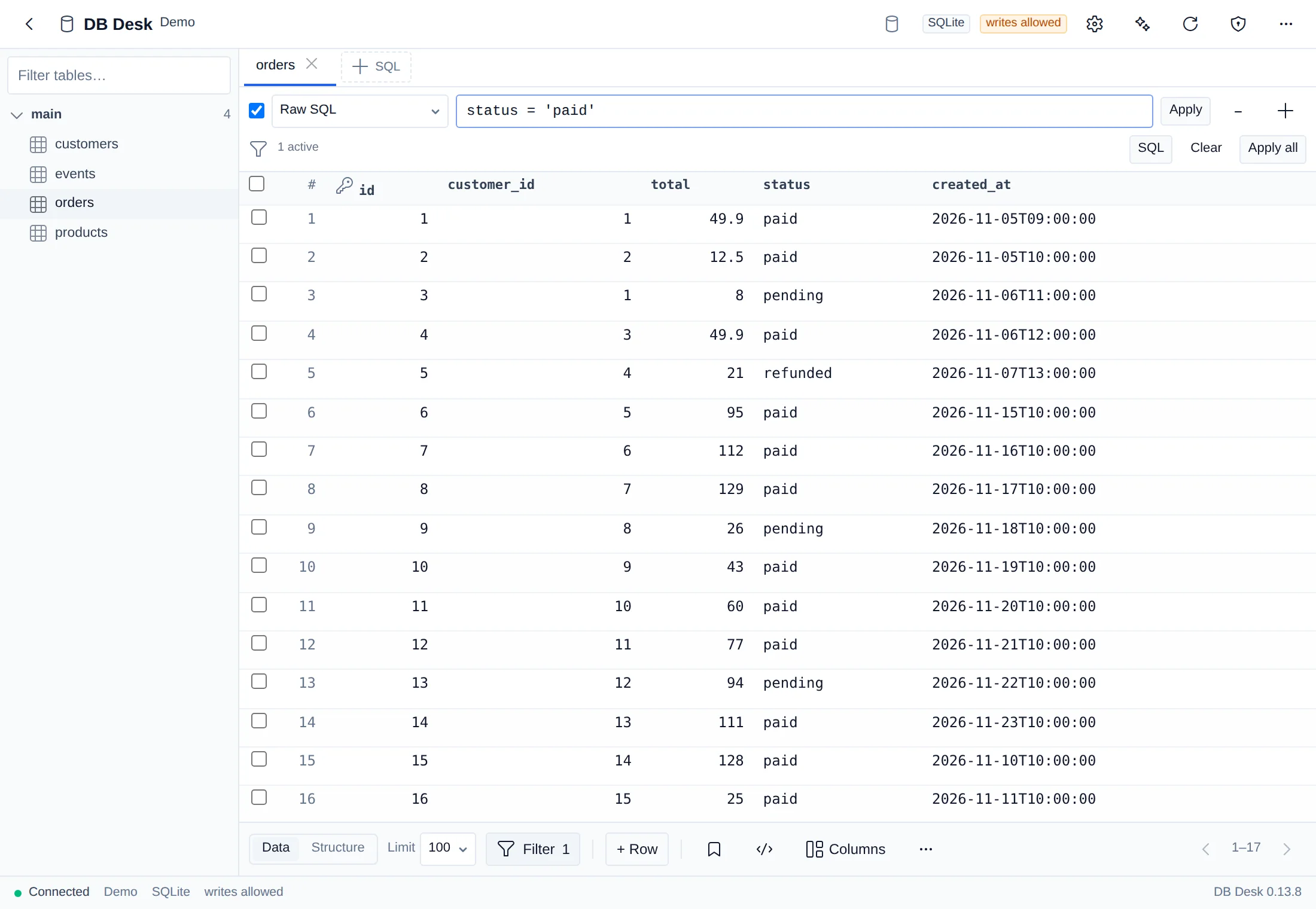
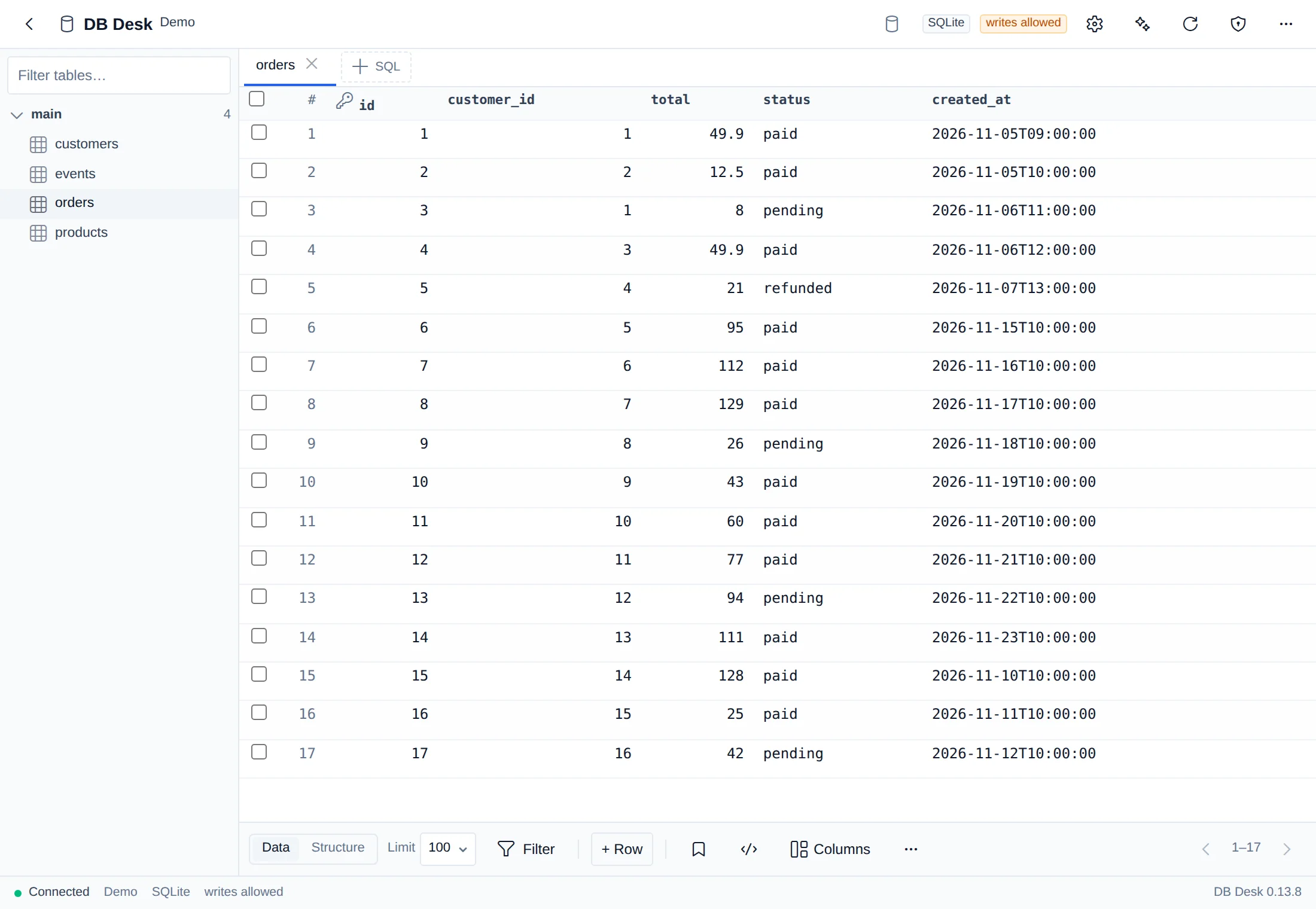
DB Desk showing the orders table in a data grid, with a table tree on the left and a Data/Structure switcher below

The data grid: sticky header, resizable columns, inline editing, and a Data / Structure switcher on every table.

One window for all of them

PostgreSQL MySQL MariaDB ClickHouse SQLite MongoDB Redis / Valkey MCP HTTP gateway

Beyond TablePlus

Workflows that usually need a second tool

DB Desk follows the TablePlus model — connections, a grid, SQL tabs — then adds the things you would otherwise script, bolt on, or do by hand.

Reveal encrypted columns in place

Store a per-connection AES key — raw, base64: Laravel APP_KEY, or a passphrase — and name the encrypted columns. AES-256-GCM/CBC envelopes are detected and decrypted inside the grid behind a Decrypt toggle. The key stays encrypted at rest and is never sent to the AI.
Timestamps in your timezone

Pick a display timezone, and say how naive timestamps are stored. Both plain timestamp columns and timestamptz render in your zone, and filter values convert back automatically when you query.

Ask AI — read-only, always

Ask a question in plain language; DB Desk sends the current table and column names, gets back one SELECT, runs it read-only and shows the SQL with the rows. It is a chat: follow up and the previous SQL is carried into the next request.

One question across databases

When a question spans connections, the agent requests the missing schemas, returns one read-only statement per database plus a join — then DB Desk loads each result into an in-memory SQLite database and runs the join locally.

SQL editor that knows your schema

Syntax highlighting plus alias-aware, join-aware, fuzzy-ranked autocomplete: c. completes to that alias’s columns, schema qualifiers and functions included. ⌘Space completes on demand.

Mongo and Redis, same guards

Collections, documents, a raw filter object, an aggregate tab; keys, TTL, a type-aware value drawer and a command console. They share the same read-only guards, production approvals and audit trail as your SQL tables.

Everything in the app

No feature behind a paywall, no add-ons

Browse & edit

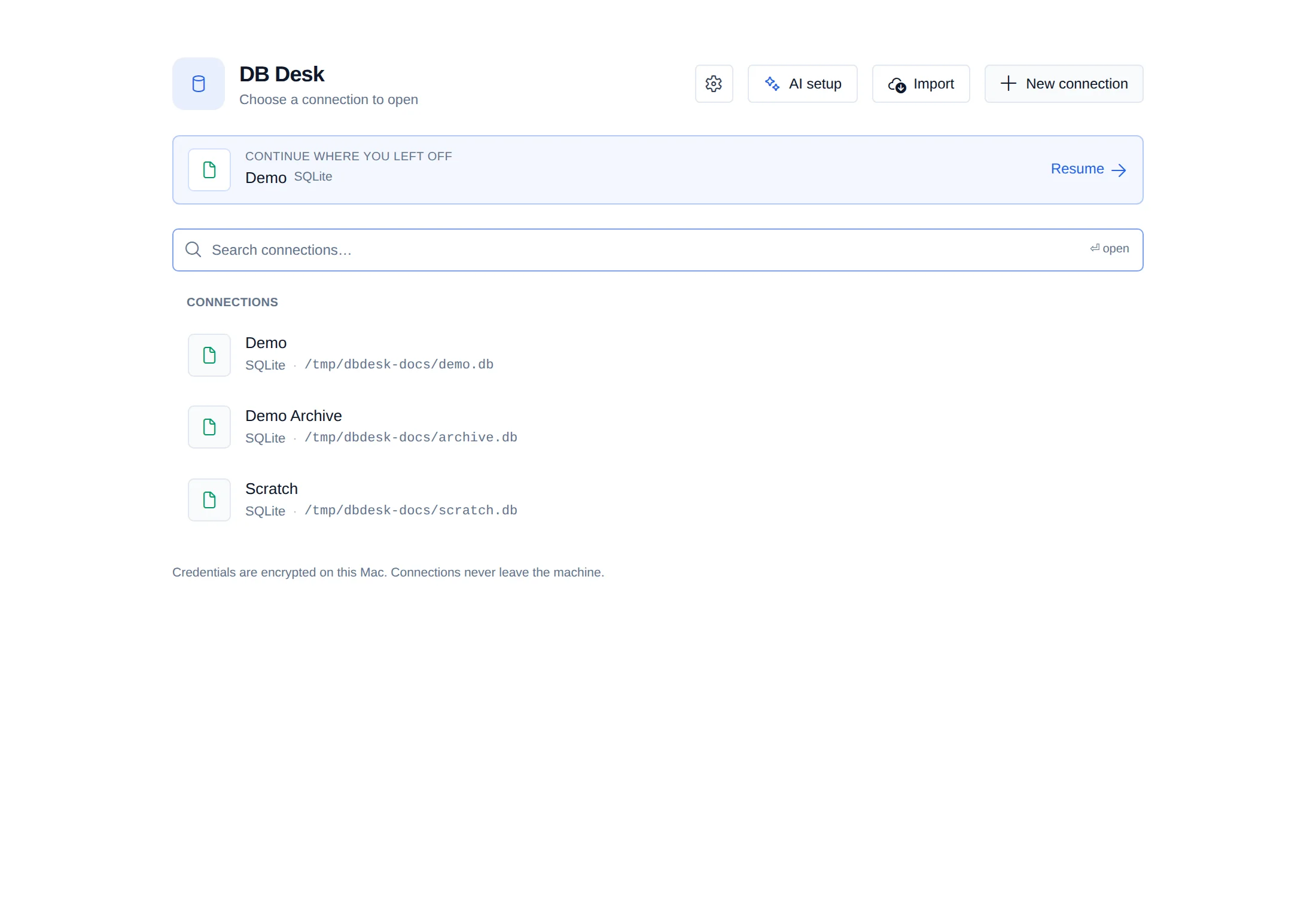
  • Connection picker — search, groups, type icons, read-only and PROD badges; right-click to open, edit, clone, test, export or delete.
  • Connection rail — a rail of open connections, right-click to edit or close.
  • Resume where you left off — the picker reopens the last connection in one click.
  • TablePlus-style filters — per-column operators, limit control, and ⌘F to search the grid.
  • Structure grid — columns, types, nullability, defaults, indexes and DDL in one view.
  • Row tools — insert, update, delete, copy, with a record panel that opens beside the grid.
  • Export & import — CSV/JSON/SQL exports from the table menu, CSV import, a QR hand-off for a connection.

Query, AI & data

  • SQL tabs — many per connection, syntax highlighting, ⌘⏎ to run, ⌘S to save, and saved-query buttons on the toolbar.
  • Quick panel — ⌘P jumps to any table, view, schema, function or connection.
  • AI setup assistant — describe the database and get a prefilled form; the password field is always left blank.
  • AI autocomplete — on by default once a provider is set, ⌘I, with a one-switch opt-out.
  • Any OpenAI-compatible provider — base URL, model and key; Detect models lists what the endpoint actually serves (OpenAI, OpenRouter, Ollama, LM Studio…).
  • JSON & JSONB editor — a cell modal with Format, NULL and Save.

Team & machine

  • MCP server — stdio or loopback HTTP; connections, databases, tables, columns, keys, DDL, rows, CSV, SQL and the AI agent as MCP tools.
  • SSH tunnels — key or agent auth, plus a custom tunnel-command field for anything else.
  • Read-only by default — enforced on the server side, not by hiding buttons.
  • Production approvals — writes against a PROD connection wait in an approval drawer and land in the audit log.
  • Backup & restore — export every connection and setting, restore on a new machine.
  • Native touches — desktop notifications for long queries, remembered window size and position, zoom shortcuts.
  • Offline by design — no telemetry, no sync server, no account. The updater is the only outbound call you did not make.
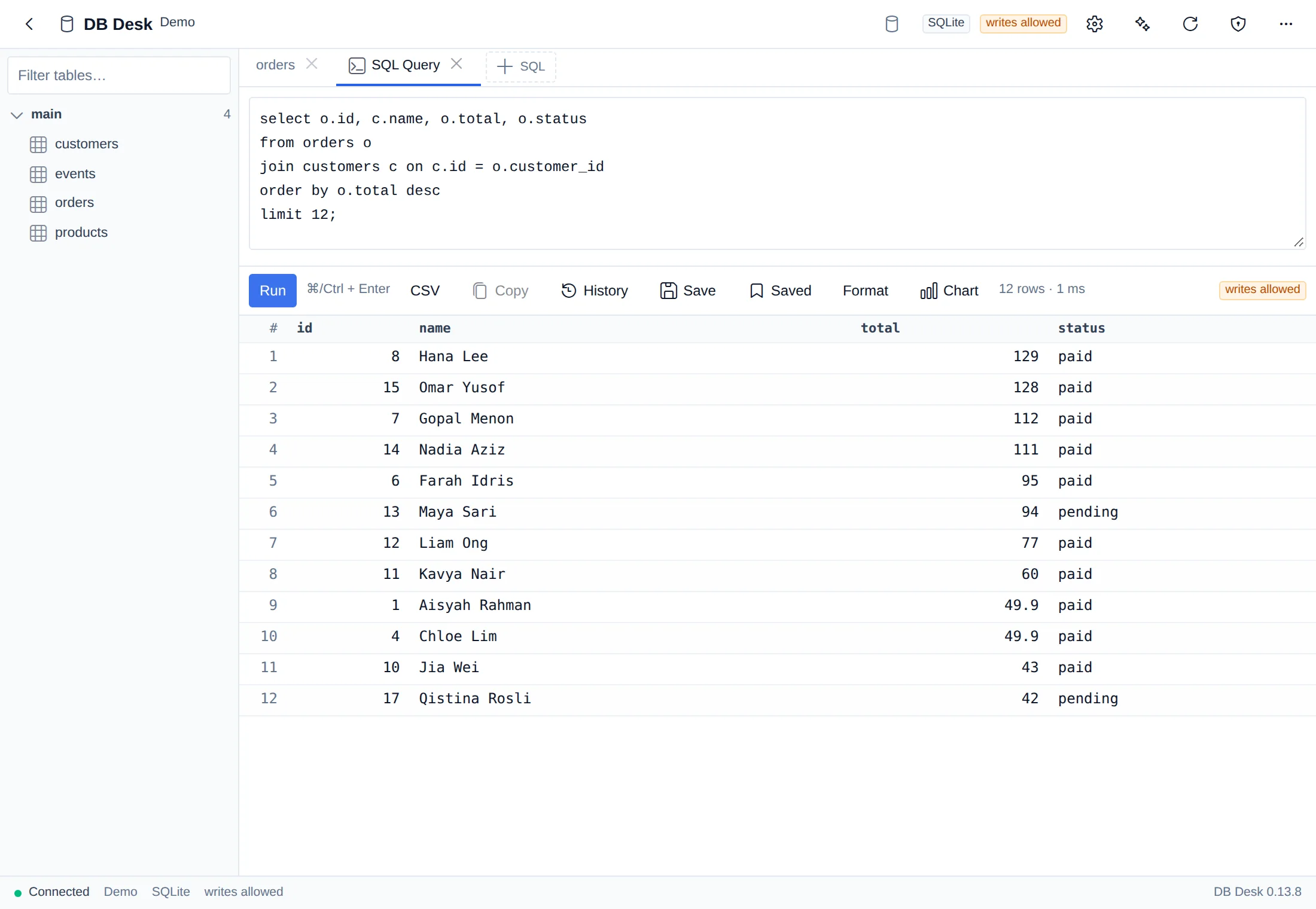
A SQL tab in DB Desk with syntax highlighting and an autocomplete list of columns

Query work

A SQL tab that finishes your sentences

Open as many tabs as the question needs, each with its own result set. The editor understands aliases and joins, so completion follows the statement you are writing rather than a flat list of every column in the database.

  • Alias-aware completion: c. → that table’s columns
  • Fuzzy ranking, functions and schema qualifiers
  • ⌘⏎ runs, ⌘S saves, saved queries come back as buttons
  • AI autocomplete on ⌘I, with an opt-out in Settings
The filter panel in DB Desk filtering rows by column, operator and value

Reading data

Filters, limits and edits that behave

Per-column operators build the WHERE clause without touching the SQL, and the limit control decides how much of a large table you pull. Double-click a cell to edit it; JSON cells get a proper editor, encrypted columns get a Decrypt toggle.

  • Filter by column, operator and value — or search the page with ⌘F
  • Right-click a table: open, export CSV/JSON/SQL, copy name, drop (with arming)
  • Every write on a PROD connection asks first, and is logged
The DB Desk connection picker listing saved connections with a Continue-where-you-left-off card

AI that stays in its lane

Schema in, answers out — never your rows

Point DB Desk at any OpenAI-compatible endpoint. It sends the SQL you are writing, the dialect, and the names and types of the tables in play. Row data, passwords, tokens and SSH material are not part of the request, and per-connection switches let you hide a schema from the model entirely or keep it inspect-only.

  • AI can see this schema — off means the model never learns it exists
  • AI can run read-only queries — off keeps it to suggestions
  • Every statement the agent runs is written to the audit log
  • API keys are AES-GCM encrypted at rest, in the app’s own data folder

For your agents

Your databases, as MCP tools

Settings → MCP server exposes DB Desk to Claude Desktop, Cursor, Hermes or any MCP client over stdio or loopback HTTP. It is off until you switch it on and generate a bearer token.

Tools

Connections, databases, tables, columns, indexes, DDL, rows, CSV, SQL — plus the AI agent itself.

Local by default

Stdio for a client on the same machine, loopback HTTP when a tool needs a port. Tunnels open on demand.

Same guards

MCP calls obey each connection’s read-only flag and production approval drawer, and land in the audit log.

One toggle

Disabled out of the box. Enable it and a bearer token is generated for you.

Security model

Local-first, read-only-first

DB Desk is a Tauri shell around a local Python sidecar. The sidecar serves the UI and talks to your databases; nothing else is in the path.

Read-only is the default, and enforced server-side

The guard lives in the API the UI calls, so hiding a button is not the protection.

Credentials are encrypted at rest

Secrets sit in the app’s data folder under AES-GCM. They are never printed, never synced, and never part of an AI request.

Production asks before it writes

Writes against a PROD connection queue in an approval drawer; the audit log records what ran, where, and for what.

No account, no backend, no telemetry

The only outbound calls are the ones you configure: your database, your AI endpoint, and the signed updater.

Read the full write-up in docs/security.md.

Keyboard-first

The shortcuts you will actually use

Every action is reachable from the keyboard, and ⌘/ lists the rest.

⌘F filter ⌘T new SQL tab ⌘⏎ run ⌘P quick panel ⌘R refresh ⌘I AI autocomplete ⌘Space complete ⌘S save query ⌘1 ⌘3 ⌘4 Data / Structure / Site ⌘, settings ⌘/ all shortcuts

Download

Get DB Desk

One download per platform, updated in place by a signed updater. No account, no licence key, and no build that phones home.

macOS 13+ · Windows 10/11 · Linux with glibc 2.39 or newer · latest release

1

Install it

macOS: drag the app out of the DMG. Windows: run the installer. Linux: deb/rpm, or make the AppImage executable and run it.

2

First launch

Builds are ad-hoc signed, so macOS asks you to confirm once — right-click → Open. Windows SmartScreen may ask the same.

3

Add a connection

Pick a database type, paste the host and credentials, and the grid opens.